Preview


Description
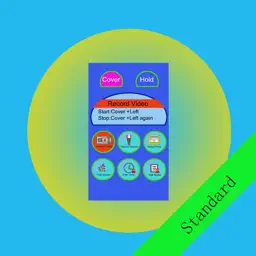
When we are moving or acting, we cannot tap the button on the screen of iPhone or we have no time to watch the screen of iPhone, but we still could cover the screen of iPhone and we still hope to use the iPhone to do the following jobs (1)take photo (2) record the sound (3)record the video (4)turn on/off the flashlight(5) play the sound (6) report the location by talking (7) report the time by talking (8) talk the text notes.(9) count the number one by one. This App is developed for the situations above. It depends on the Proximity Sensor in iPhone. The proximity Sensor is located at the top part of the screen of iPhone, the left side of front camera. We need to use the following two special actions: 1. Cover+Left: Cover the top part of the iphone's screen and left. 2.Hold: Cover the top part of the iphone's screen, wait for a longer time, at least ten seconds and finally left. We could cover the screen by our hands, our clothes, our arms, our face,our body, or our books. For talking the name of location, the iPhone need to connect the internet Usage: When we tap the cover button, the App will be in the covering status. When we tap the hold button, the App will be in the holding status. In the covering status, if we take photos (default eight photos), record video, record sound, play sound and talk notes, we need to cover and left the top of the screen first, then the job will start, after at least seven seconds, we could cover again to stop the job. In the holding status, if we take photos (default eight photos), record video, record sound, play sound and talk notes, we need to cover the top of the screen first, without leaving, then the job will start, when we want to stop the job, we need to left. Tap the count button, the talking counter will be launched.Just cover the screen, the Talking counter could help us to count the number by talking in English. Tap the menu button at the bottom left corner, the menu will be displayed. This menu includes five items. 1 View Video Clips. 2 Play Sound files. In this view, we could play sound , delete sound files and rename the file. 3 View Photos. Tap this item, we could see the photo list with the small photo preview. When we tap the photo item, this view will close. 4 Select a sound file for playing. Select the sound file for the playing. The sound files includes the file record by the recording reaction or the sound files imported from the iTune file sharing. 5 Talk Notes. Edit and Add the text notes. Solution Examples Solution 1: When we are walking in darkness, turn on or turn off the flash light quickly and frequently. Step 1: Launch this App. Step 2: Select the cover button. Step 3: Select the flash light button Step 4: Start to walk as usual. Step 5: If you decide to turn on the light ,then make the iPhone screen close to your clothes and left.If you decide to turn off the light ,then make the iPhone screen close to your clothes and left again. Solution 2: Make the app talk the current location while we are walking. Step 1: Launch this App. Step 2: Select the cover button. Step 3: Select the location button Step 4: Start to walk as usual. Step 5: If you need to listen the talking of the current location ,then make the iPhone screen close to your clothes and left the screen from your clothes.The app will talk the information about the location. Solution 3: Record the sound while studying in Classroom Step 1: Launch this App. Step 2: Confirm already tap the Record Sound button. Step 3: Select the cover button. Step 4: Put the iPhone on your desk Step 5: If you decide to record the sound, then put your hand on the top left corner of the iPhone screen, then left your hand Step 6: When you want to stop recording, just put your hand again on the top left corner and left.
What's New
Version 5.0.7 2024-04-23
Update the default preference for the first time user: The default value for the photo number will be 20 instead of 8 Technical Analysis
Package Overview Basic metadata
Bundle ID
fangshen.Auto-Proximity-Detection Current Version 5.0.7
Minimum iOS 13.0
Package Size App Store Size
Package Metadata 0 / 21 version records
1.0 / 5.0 (2 ratings)
Detailed binary, privacy manifest, framework, and Info.plist results have not been indexed for this package yet. The verified App Store and archive metadata above remains available.
Known Version Records
0 version records with stored package metadata • 21 known version records
Stored metadata does not guarantee a package is currently available to download.
| Details | Version / IDs | Version date | Action |
|---|---|---|---|
| Not archived | App Store ID: 864638963 | Unknown | Request Version |
| Not archived | App Store ID: 856456612 | Unknown | Request Version |
| Not archived | App Store ID: 853487355 | Unknown | Request Version |
| Not archived | App Store ID: 842682203 | Unknown | Request Version |
| Not archived | App Store ID: 842462152 | Unknown | Request Version |
| Not archived | App Store ID: 841469993 | Unknown | Request Version |
| Not archived | App Store ID: 840927902 | Unknown | Request Version |
| Not archived | App Store ID: 835694102 | Unknown | Request Version |
| Not archived | App Store ID: 829182093 | Unknown | Request Version |
| Not archived | App Store ID: 826525576 | Unknown | Request Version |
| Not archived | App Store ID: 822298992 | Unknown | Request Version |
| Not archived | App Store ID: 822236268 | Unknown | Request Version |
| Not archived | App Store ID: 821709203 | Unknown | Request Version |
| Not archived | App Store ID: 821654486 | Unknown | Request Version |
| Not archived | App Store ID: 821342542 | Unknown | Request Version |
| Not archived | App Store ID: 820745090 | Unknown | Request Version |
| Not archived | App Store ID: 820631034 | Unknown | Request Version |
| Not archived | App Store ID: 819124797 | Unknown | Request Version |
| Not archived | App Store ID: 817671794 | Unknown | Request Version |
| Not archived | App Store ID: 752692773 | Unknown | Request Version |
| Not archived | App Store ID: 676302913 | Unknown | Request Version |