Preview


Description
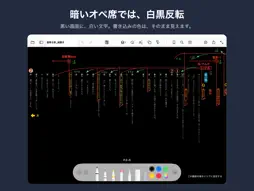
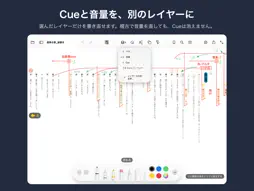
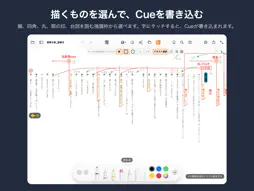
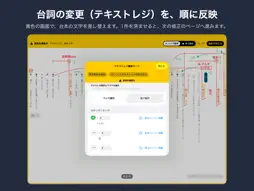
ScriptCueMark lets you open a script PDF on iPad and mark cues with Apple Pencil for use during a performance. ■ Read the script the way it is printed Show one page at a time or a two-page spread. Choose the page-turn direction and page order so right-bound, vertically written Japanese scripts read naturally. Set the gap between pages to one of five widths and draw seamlessly across the spread. Stay zoomed in for easier reading as you turn pages, so wide margins do not take up the screen. Roll View removes page breaks and displays the script as one roll. Draw one line from the start of a cue to its end across pages. Add a blank margin for notes when the script has little room. It is included in the exported PDF. Invert black and white in dark spaces; markup colors stay as they are. ■ Mark it up with Apple Pencil Hold Apple Pencil still after drawing to convert the stroke into a straight line, circle, or another shape. Use preset shapes and editable text as stamps. Add horizontal or vertical text, and choose its font, size, and color. Previously used text is available from history. Draw around marks to select, move, scale, or rotate them. Tap lines or text after writing to duplicate them or change their color, line width, or text size. Select multiple marks at once. Continue a line from the end of another line; the segments join automatically and move as one mark. Draw toward the edge of the screen and the script scrolls, letting the line continue onto later pages. Create and save custom colors. After erasing, the app returns to your previous pen. Highlighter strokes sit behind the text, so the script stays crisp. ■ Keep cues and levels on separate layers Split your marks across layers, like transparent sheets stacked over the page. Only the selected layer can be edited, so changing levels in rehearsal does not erase your cues. Add, merge, reorder, or hide layers, and link a color to each. Import marks from other apps, such as Preview, into a new layer. ■ See the page with the next mark Touch and hold the yellow indicator at the edge of the screen to view the page with the next mark. Release it to return to where you were. ■ Go by the script's own page numbers ScriptCueMark reads the page numbers printed on the script and uses them to jump to a page. Whether or not the cover counts as page 1, "p. 12" in rehearsal opens page 12. ■ Jump to a scene with bookmarks Add named bookmarks such as "Scene 1" to any page, and jump to them from a list. It can also find scene headings in the script and add them for you. ■ Search the script Search for a word and jump to the page. Hiragana and katakana are treated as equivalent, and the search can also find kanji with the same reading. ■ Keep line changes in one place Paste a list of line changes received during rehearsal. Select an item to jump to its page, cover the text being changed with a mask, and replace it with the revised text. Mark each item when it is complete. While applying line changes, a yellow frame distinguishes this work from normal markup. Complete one item and the app moves to the page for the next change. ■ Two ways to export • Not Editable: your marks are drawn into the PDF and look the same elsewhere. • Editable: opens in ScriptCueMark with your marks still editable, to continue on another iPad. Only visible layers are exported. ■ Your script stays on your iPad This app does not connect to the internet. Scripts and markups are stored only on the iPad. No data collection, no ads. ■ Good to know • Works with PDF files, including password-protected ones. • Text selection, search, and automatic location of line changes require a PDF with text data and do not work with scanned paper scripts. • You can use your finger if you do not have an Apple Pencil. • The manual opens from the file menu (folder button, top left). • This app is published free of charge by an individual. Please check it with your own script before using it in rehearsal or performance.
What's New
Version 1.5 2026-10-27
• Show or hide each layer with the eye icon in the layer list. Hidden layers are not included when you export. • Change the order of layers in Layer Settings. U... Technical Analysis
Package Overview Basic metadata
Bundle ID
com.mizutaniyuji.ScriptCueMark Current Version 1.5
Minimum iOS 17.0
Package Size App Store Size
Package Metadata 0 / 0 version records
Detailed binary, privacy manifest, framework, and Info.plist results have not been indexed for this package yet. The verified App Store and archive metadata above remains available.
Known Version Records
0 version records with stored package metadata
Stored metadata does not guarantee a package is currently available to download.
| Details | Version / IDs | Version date | Action |
|---|