
Preview






Description
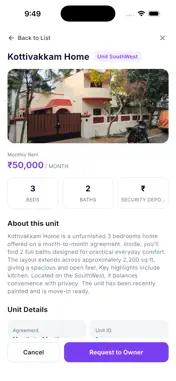
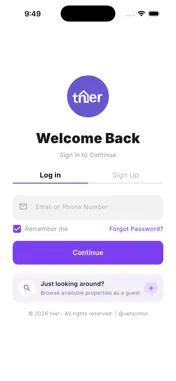
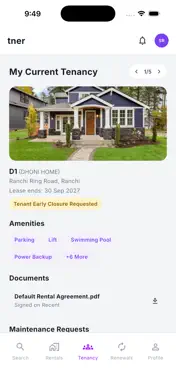
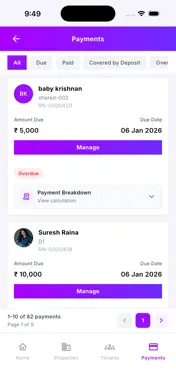
Are you looking to manage properties, tenants, payments, maintenance, and settings in one mobile app? Tenant Side Features: 1. Sign Up: Create account with name, phone, email, password, and confirm password. 2. Login: Log in using email, mobile number, OTP. 3.Search Properties: (Available without login) 4.Rentals: (Login required)
5.Tenancy: (Login required)
6.Renewals: (Login required)
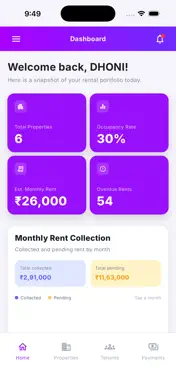
7.Profile: (Login required) Owner Side Features: 1. Sign Up: Create account with name, phone, email, password, and confirm password. 2. Login: Log in using email, mobile number, OTP. 3. Dashboard: View total properties, occupancy rate, monthly rent, overdue rents, tenants, action items, maintenance requests, and recent activity. 4. Side Menu: Navigate to Dashboard, Properties, Units, Tenant Management, Rentals, Payments, Settings, and Logout. 5. Properties: View All, Occupied, Listed, and Delisted properties. 6. Details: View property name, address, status, type, floors, rental units, amenities, units, and rent. 7. Tenants: View All, Active, and Overdue tenants. 8. Payments: View All, Due, Paid, Overdue, and Upcoming payments. 9. Manage Payment: Update status, paid amount, date, mode, notes, adjustments, and late fee waiver. 10. Settings: Access Privacy Policy, Terms and Conditions, and Delete Account. Sign Up Flow: 1. Open the app. 2. Tap Sign Up. 3. Enter name, phone, email, password, and confirm password. 4. Tap Create Account. 5. Log in after registration. Mobile Number OTP Login Flow: 1. Open the app. 2. Tap Log in. 3. Enter registered mobile number. 4. Tap Continue. 5. Enter the OTP received. 6. Tap Resend OTP after timer ends if required. 7. Tap Change email/phone number to edit. 8. Select Remember me if needed. 9. Tap Continue to open Dashboard. Dashboard Flow: 1. Log into your account. 2. View total properties, occupancy rate, monthly rent, and overdue rents. 3. Scroll to tenants, action items, maintenance requests, and recent activity. 4. Tap View All to open the detailed list. Side Menu Flow: 1. Tap the menu icon from Dashboard. 2. Select Dashboard, Properties, Units, Tenant Management, Rentals, Payments, or Settings. 3. Tap Logout to log out. Property Flow: 1. Tap Properties. 2. Select All, Occupied, Listed, or Delisted. 3. View property name, location, type, occupancy count, views, and status. 4. Tap View to open property details. 5. View key details, amenities, units, and rent. Tenant Flow: 1. Tap Tenants or Tenant Management. 2. Select All, Active, or Overdue. 3. View tenant name, email, phone, and status. 4. Tap a tenant to view more details. Payment Flow: 1. Tap Payments. 2. Select All, Due, Paid, Overdue, or Upcoming. 3. View tenant name, property, unit number, amount due, due date, and status. 4. Tap Manage. 5. Update status, paid amount, date, mode, and notes. 6. Tap Update Payment. Late Fee and Adjustment Flow: 1. Open Manage Payment. 2. Go to Adjustments. 3. Select adjustment type. 4. Enter amount and notes. 5. Tap Apply Adjustment. 6. Tap Waive Late Fee if available. Maintenance Flow: 1. Go to Dashboard. 2. Scroll to Maintenance Requests. 3. View request title, tenant name, and status. 4. Tap View All to see all requests. Settings and Delete Account Flow: 1. Open side menu and tap Settings. 2. Tap Privacy Policy to view data usage. 3. Tap Terms and Conditions to view app rules. 4. Tap Delete Account. 5. Review deletion conditions. 6. Type DELETE to confirm. 7. Enter reason if required. 8. Tap Permanently Delete, or tap Cancel.
Technical Analysis
Package Overview Basic metadata
Bundle ID
com.vehonitor.tner Current Version 1.0.0
Minimum iOS 15.0
Package Size App Store Size
Package Metadata 0 / 0 version records
Detailed binary, privacy manifest, framework, and Info.plist results have not been indexed for this package yet. The verified App Store and archive metadata above remains available.
Developer Information
Known Version Records
0 version records with stored package metadata
Stored metadata does not guarantee a package is currently available to download.
| Details | Version / IDs | Version date | Action |
|---|