Preview




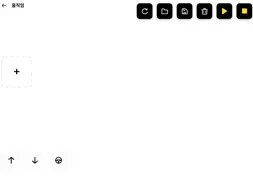
Description
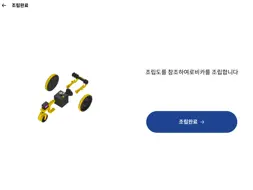
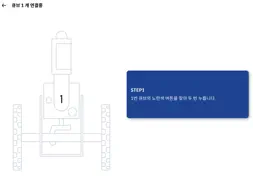
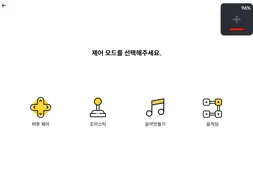
Coding Roby App Experience simple robotic engineering sequences by creating loops with your own buttons, joysticks, music and motion makers that can be controlled with the Coding Roby app program. Each robot model requires a designated link to assemble the cube. Find the parts for G1, G2, and G3 in the box. Cube is a single modular robot with controller, gyroscope, accelerometer, proximity sensor, additional sensor interface, stepper motor, battery and more. 1. How to download the Coding Roby app: Download the Coding Roby app from the App Store. (App Search: Coding Roby). 2.ON/OFF and charging instructions Press and hold the yellow power button for more than 2 seconds to turn the cube on and off. (A beep sounds) 3.Charge 3-1. Prepare the cube. Attach the parts together. 3-2.Connect the charging cable to the circular disk part of the cube. 3-3.The cube and the charger are connected by a circular magnet. More than 100 cubes can be charged at a time. 3-4.Charging time: 6 cubes/hour (charging time depends on the number of cubes). 3-5. If the cube automatically turns off or starts to delay or there is no LED indication, the battery may be low. 4. How to use the app 4-1. Install the app Download the Ping Pong APP to your smartphone or device. (App Search: Coding Lobby in App Store). 4-2. Run the app Open the Coding Lobby app and select the cube group. Select a group based on the number of cubes (G1, G2, G3 or Play). 4-3. cube group After selecting the cube group, select the coding lobby robot model. 4-4. Assembly Assemble the coding lobby model by referring to the APP image. For detailed instructions, please click the 3D Modeling Guide button. 4-5. on After assembling the ping-pong model, press the yellow power button for more than 2 seconds to turn on all ping-pong cubes. 4-6. First cube pairing Check the first cube on the app screen. Press the power button on the assembled robot in the order shown on the app screen. When the first cube connects successfully with the smartphone, a pairing signal and beep will sound. 4-7. Pairing different cubes After pairing the app with the first cube, press the yellow power button on the remaining cubes (follow the order on the app screen). 4-8. play robot The Coding Lobby app provides various functions such as buttons, joystick, music mode, and motion making. 5. Cube color When the cube is successfully connected to the smartphone, you can distinguish each cube's LED color, specifically in the following order: red, green, blue, cyan, magenta, yellow. 6. Cube Icon Determine the order and position of the ping-pong cubes with various icons such as squares, triangles, circles, stars and hearts.
What's New
Version 1.0.5 2022-08-09
Can't connect after Setting Group ID Issue Technical Analysis
Package Overview Basic metadata
Bundle ID
com.roborisen.coding-roby Current Version 1.0.5
Minimum iOS 13.0
Package Size App Store Size
Package Metadata 0 / 6 version records
0.0 / 5.0 (0 ratings)
Detailed binary, privacy manifest, framework, and Info.plist results have not been indexed for this package yet. The verified App Store and archive metadata above remains available.
Developer Information
Known Version Records
0 version records with stored package metadata • 6 known version records
Stored metadata does not guarantee a package is currently available to download.
| Details | Version / IDs | Version date | Action |
|---|---|---|---|
| Not archived | App Store ID: 851451200 | Unknown | Request Version |
| Not archived | App Store ID: 848445767 | Unknown | Request Version |
| Not archived | App Store ID: 848427934 | Unknown | Request Version |
| Not archived | App Store ID: 848355151 | Unknown | Request Version |
| Not archived | App Store ID: 848284151 | Unknown | Request Version |
| Not archived | App Store ID: 847534332 | Unknown | Request Version |