
Preview



Description
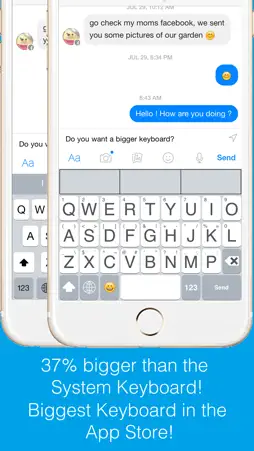
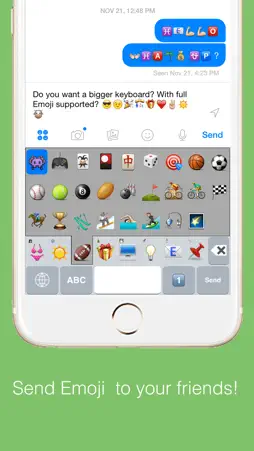
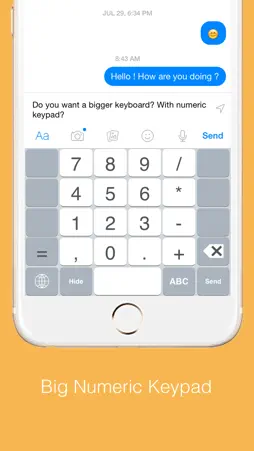
Do you want a bigger keyboard? With the smart highlighted next key hints and fuzzy input? And full Emoji supported? Try out this Biggest keyboard in the App Store! ** Biggest Keyboard in the App Store Keys are 37% bigger than the system keyboard. It is good for people who have big thumbs. Also people who want to preserve their vision will benefit from this keyboard. ** Fuzzy input If you use the Apple's system keyboard to input "determination", you won't see it in the suggestion list until typing "determina". With the highlighted keyboard, you can just type "dtmnn" to have it show in the suggestion bar. Another example is that once I wanted to input "anthropology" but I forgot the spelling, all I remembered was it started with "an" something and ended with "logy", I then typed “anlg” in the Highlighted keyboard and I saw “anthropology” in the suggestion list. ** Highlighted next possible keys After you type one key the keyboard will smartly highlights the possible next keys that you want to input. Also it has the suggestions that you can select from the top of the keyboard. ** Latin letters supported You can type the latin letters directly from the keyboard. You can also type "£" & "€" as well. ** Emoji translation Translate the word that you select in the suggestion bar into Emoji characters. It is a fun way to communicate with your friends and family. It is disabled by default and you need to use the "Keyboard Setting" page to enable this feature. ** Slide to move the input cursor Sliding from the Space key to left/right to move the current input cursor to left or right. Sliding up to move the current cursor to the beginning of the sentence and sliding down to move the current cursor to the end of the sentence. It makes your life much easier when editing text on the iPhone/iPad. ** 36 most common emojis in the same keyboard without switching UI Long press on the "happy face" emoji key and it will popup the36 most common emojis. You can then input directly from there. ** Full Emoji keys supported It is very convenience to input Emoji characters with this keyboard when you are using Facebook, Twitter, iMessage, Wechat, Text Message, SMS, etc. Just long press on the key that has sub-menu and more Emoji characters will pop up. The Emoji characters are well categorized and you can input the Emoji and Text together in one keyboard! ** Numeric Keypad This keyboard supports the traditional numeric keypad layout with big number keys. It is useful for entering long sequences of numbers quickly. ** Keyboard Settings Long press on the "globe"/"123" key to pop up the sub-menu. Select the "Tool" key to launch the setting page. You can enable/disable the Highlight Next key feature. You can also enable/disable the "Emoji translation" feature. ** NO Full Access required ** How to use 1. After install you need to enable it in the "Settings" App in your iPhone/iPad. Launch "Settings", click on "General" -> "Keyboard" -> "Keyboards" -> "Add New Keyboard" -> Select the "HighlightedKeyboard". 2. Switch the keyboard to "Highlighted Keyboard" when you are inputting. 3. Long press on one key to input the keys in the pop-up menu including 0-9 and punctuation marks. You may try to long press on keys to find the hidden sub menus. For example, if you want to hide the keyboard, long press on the "globe" key and the sub-menu will pop up. Keep holding and move to select the "Hide" key. The keyboard will hide after you release your finger. Please send any feedback, bug reports or feature request to: feedback.southfun at gmail.com Thanks for viewing!
What's New
Version 1.2.1 2021-05-20
Fixed the cap lock issue. Technical Analysis
Package Overview Basic metadata
Bundle ID
com.Southfun.HighlightedKeyboard Current Version 1.2.1
Minimum iOS 9.0
Package Size App Store Size
Package Metadata 0 / 4 version records
Detailed binary, privacy manifest, framework, and Info.plist results have not been indexed for this package yet. The verified App Store and archive metadata above remains available.
Known Version Records
0 version records with stored package metadata • 4 known version records
Stored metadata does not guarantee a package is currently available to download.
| Details | Version / IDs | Version date | Action |
|---|---|---|---|
| Not archived | App Store ID: 842293498 | Unknown | Paid / Arcade |
| Not archived | App Store ID: 840910512 | Unknown | Paid / Arcade |
| Not archived | App Store ID: 837148933 | Unknown | Paid / Arcade |
| Not archived | App Store ID: 761802707 | Unknown | Paid / Arcade |