
Preview







Description
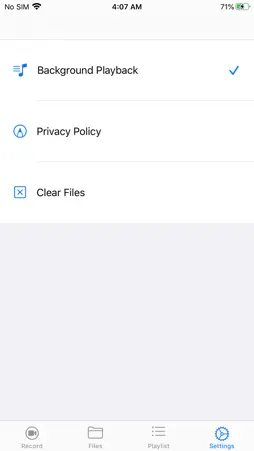
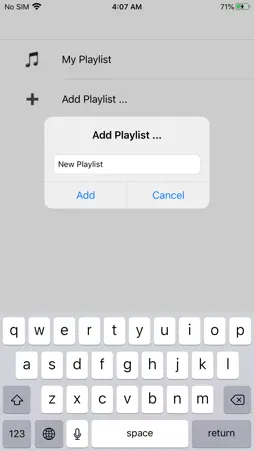
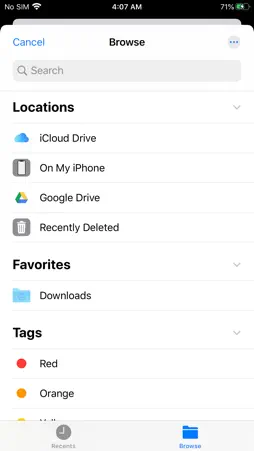
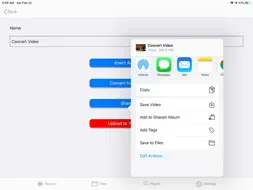
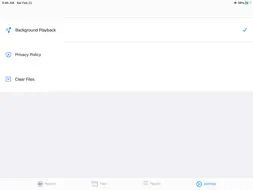
Video Master helps you to add background music. You can record the music using the keyboard, or use an existing background music from your collection. You can manage and edit files, playback, or upload them. Video Master is the one app you need before uploading your videos on Youtube. Features - Record your music - Import videos from Camera roll - Download videos from cloud services - Insert Background music to your videos - Convert video to audio - Background Playback - Play videos in a playlist - Save your videos to Files or Camera roll - Upload your video to Youtube How to record music and upload: 1. Record your music on the Record tab 2. Go to the Files tab 3. Tap the cloud button on the top right corner 4. Select an option: Download from cloud services (via Files), or import from camera roll 5. Tap on the "i" button on the video 6. Select "Insert audio" and select your new recording 7. A new video is created 8. Tap on the "i" button on the new video 9. Select "Upload to Youtube" ---- How to convert video to audio: 1. Go to the Files tab 2. Tap on the cloud button on the top right corner 3. Select an option: Download from cloud services (via Files), or import from camera roll 4. Tap on the "i" button on the video 5. Select "Convert to audio" 6. A new audio file is created. You may use this for another video upload. ---- How to play videos or audios in a playlist: 1. Go to the Playlist tab 2. Select "Add playlist" 3. Type a name and press enter 4. Select "Add videos" 5. A list of current files will be available for selection 6. Press "back" button 7. Play
What's New
Version 2.1 2024-11-25
Bug fix. Technical Analysis
Package Overview Basic metadata
Bundle ID
com.videomaster.lite Current Version 2.1
Minimum iOS 13.0
Package Size App Store Size
Package Metadata 1 / 4 version records
Detailed binary, privacy manifest, framework, and Info.plist results have not been indexed for this package yet. The verified App Store and archive metadata above remains available.
Developer Information
Known Version Records
1 version record with stored package metadata • 4 known version records
Stored metadata does not guarantee a package is currently available to download.
| Details | Version / IDs | Version date | Action |
|---|---|---|---|
 18.54 MB | v2.1 App Store ID: 866137947Build: 4 | 2024-11-20 21:34:24 | Get Version |
| Not archived | App Store ID: 848054280 | Unknown | Request Version |
| Not archived | App Store ID: 834845689 | Unknown | Request Version |
| Not archived | App Store ID: 834821043 | Unknown | Request Version |