Preview




Description
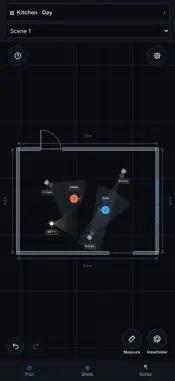
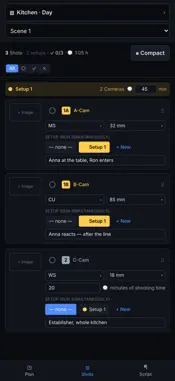
From script to finished blocking. back-to-one is the blocking tool for directors and cinematographers. Import your screenplay as FDX and the app builds the project for you: every scene with its slugline, and every character. Instead of starting from scratch, you start where the work begins. SCRIPT IMPORT - Import FDX, TXT or PDF - FDX creates the project, scenes and characters automatically - Pick scenes individually, OMITTED scenes are excluded - Each scene's text laid out in proper screenplay format CANVAS AND STAGING - Top-down canvas, smooth on iPhone, iPad and Mac - Place characters, cameras, lights, walls and props - or drag them straight from the menu onto the stage - Room scan: on LiDAR devices the app captures walls, doors and windows and turns them into a usable floor plan - Import a floor plan as a background image - Scene templates, and save your own - 146 props at true size - furniture, tableware and decor, animals, vehicles, film gear - each drawn in its own material, and the material switches off for plain outlines - Import your own PNG props - Background actor groups as a single object - Copy the walls and openings of one scene into another CAMERAS - Auto-aim: the camera turns with the character it is linked to - Field of view from focal length and sensor format (S35, FF, S16, MFT, ARRI LF, anamorphic) - Six rig types: tripod, Steadicam, handheld, drone, action cam, crane - Camera icon size adjustable, setup number large on the label or in the body - Multi-cam setups, grouped by color - 180-degree line with a crossing-the-line warning - Viewfinder: live image in the project's aspect ratio, focal-length wheel, shutter - the frame lands on the shot of the camera you picked SHOT LIST - Every camera creates a shot, linked both ways with the canvas - Shot numbers by setup (1A/1B) - A storyboard image per shot - drop it on the plan too, tied to its camera - Coverage status: open, shot, cut - also visible on the plan, as a tick or cross on camera and storyboard - Estimated shooting time per shot, with totals - Shoot day per scene, and a shoot-day filter ANIMATION - Timeline with keyframes, play, loop, speed - Characters walk to waypoints, facing direction per keyframe - Camera moves and orbits on smooth curves, dolly track drawn on the plan - Follow: the camera tracks a character LIGHT AND EXTERIORS - Key, fill, back, practical, HMI, Kino, reflector - Watts, dimmer, gel, diffusion, height, color temperature - Real sun position by location, date and time, with golden hour detection SET DOCUMENTS, READY TO HAND OUT - Scene PDF with plan and shot table - also as a compact one-pager per scene - Lighting plot with numbered fixtures and a legend - Project overview as a PDF - Shot list as Excel and CSV - Canvas as an image ON SET - Full-screen presentation mode - Dim, night and red-light modes for a dark set - Works offline: open, edit and save in airplane mode, iCloud catches up when you are back online PROJECTS AND COLLABORATION - iCloud sync between iPhone, iPad and Mac - Share projects through iCloud sharing - Scene-level merge, auto-save, backups, duplicate whole projects - Colour labels per scene, with a filter - shared along with the project YOUR DATA No server of our own, no tracking, no ads. Your content stays on your device and in your iCloud. Available in English and German. For iPhone, iPad and Mac. SUBSCRIPTION Pro is available as an auto-renewing subscription (monthly or yearly, with a 7-day free trial) or as a one-time Lifetime purchase. Payment is charged to your Apple Account at confirmation. A subscription renews automatically unless it is cancelled at least 24 hours before the end of the current period. You can manage and cancel subscriptions in your Apple Account settings. Terms of Use (EULA): https://www.apple.com/legal/internet-services/itunes/dev/stdeula/ Privacy Policy: https://back-to-one.de/datenschutz.html
What's New
Version 1.15 2026-11-13
The guide now shows instead of only describing. Where a button is explained, its icon sits next to the text — and below it a "Show me": the help window closes ...The guide now shows instead of only describing. Where a button is explained, its icon sits next to the text — and below it a "Show me": the help window closes and the real button in the app gets a red, pulsing frame with an arrow pointing at it. No more hunting through the toolbar. There is also a chapter of its own on the ring menu, with a small picture of the ring: which six places it has, why they always lie in the same direction, and what the three dots mean. We also went through the whole guide and checked it against the app. In six places it described buttons that have since been renamed — those are right again. If you use the app in English, several places are now actually English: five labels and seven help texts were still German. Fixed: on the error screen, "Copy error" put nothing on the clipboard. Technical Analysis
Package Overview Basic metadata
Bundle ID
de.erikhaffner.backtoone Current Version 1.15
Minimum iOS 15.0
Package Size App Store Size
Package Metadata 0 / 0 version records
Detailed binary, privacy manifest, framework, and Info.plist results have not been indexed for this package yet. The verified App Store and archive metadata above remains available.
Developer Information
Known Version Records
0 version records with stored package metadata
Stored metadata does not guarantee a package is currently available to download.
| Details | Version / IDs | Version date | Action |
|---|