Preview





Description
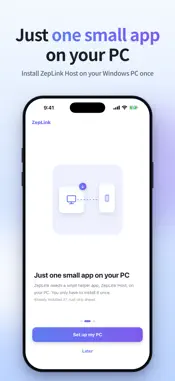
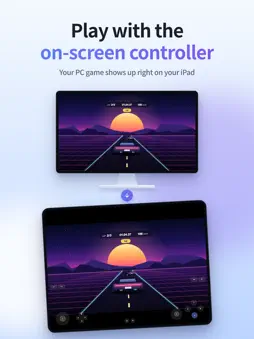
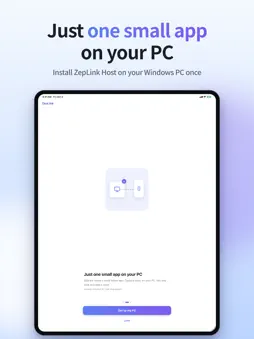
ZepLink brings the games running on your Windows PC to your iPhone and iPad. The game runs on your PC; your iPhone or iPad shows the picture, plays the sound and sends your controls back to the PC. ■ Before you start • To play on your own PC, you need a Windows PC with ZepLink Host (free) installed on it. The app alone can't run games (if a friend invites you, you can join their PC). • Install ZepLink Host: zeplink.app/setup • The first time you add a PC, your PC and your iPhone or iPad must be connected to the same router (the same network). ■ Connect • In the app, tap "Add a PC" and scan the QR code on your PC's screen. That's it. • Can't use the camera? Pick a PC found on your network or enter its IP address, then type the 6-digit code shown on the PC. • After that, tap the PC in your list to connect. ■ Control • Use the on-screen controller or a game controller connected over Bluetooth. • Touch works as a mouse: one finger clicks and drags, a two-finger tap right-clicks, and a two-finger swipe scrolls. • While streaming, the top bar hides after a few seconds. Tap with three fingers to bring it back. ■ Free on the same Wi-Fi • At home, on the same network, you connect without signing in. • The free version shows ads. A banner is always shown at the bottom of the home screen. Your first 3 connections start right away; after that, watch one rewarded ad to connect for 12 hours without watching another ad. ■ ZepLink Pro • Remote access: connect away from home without setting up port forwarding or a VPN. The ZepLink server helps your iPhone or iPad and your PC find each other; the picture and your input go directly between the two devices, not through the server. • Remote access works on up to 2 devices at the same time per account. You can sign in on as many devices as you like; same-Wi-Fi connections and friends who join through Play Together don't count. • Play Together: invite a friend who is far away with an invite link or a 6-digit code, and play together on your PC's screen. Your friend joins without signing in or subscribing, and only their controller input reaches your PC. • Removes ads. • Monthly and yearly plans are available; prices are shown on the purchase screen. Subscriptions renew automatically unless you cancel, and you can cancel anytime in the Settings app under [your name] → Subscriptions. • Remote access and invites require signing in with an Apple Account or a Google account. Subscribing doesn't. ■ Check before you pay Remote access connects your two devices directly, without a relay server, so it may not work on some networks (for example some mobile data networks, or some router or workplace network settings). Before you pay, run the free Connection check to see whether remote access works between your PC and the network you're on. ■ More • Streaming quality settings: resolution, frame rate, bitrate and codec • Turn the on-screen controller on or off • Mark the PCs you use most as favorites ■ Good to know • If you switch to a new iPhone or iPad, you'll need to add your PCs again. • You can delete your account in the app under Settings → Account → Delete account. Deleting your account doesn't cancel your App Store subscription, so cancel it first. • Terms of Use: https://zeplink.app/en/terms/ • Apple Standard License Agreement (EULA): https://www.apple.com/legal/internet-services/itunes/dev/stdeula/ • Privacy Policy: https://zeplink.app/en/privacy/ • Support: [email protected]
Technical Analysis
Package Overview Basic metadata
Bundle ID
com.zeplink.ZepLink Current Version 1.0
Minimum iOS 26.0
Package Size App Store Size
Package Metadata 0 / 0 version records
Detailed binary, privacy manifest, framework, and Info.plist results have not been indexed for this package yet. The verified App Store and archive metadata above remains available.
Developer Information
Known Version Records
0 version records with stored package metadata
Stored metadata does not guarantee a package is currently available to download.
| Details | Version / IDs | Version date | Action |
|---|